

Firebase App Distribution gives a holistic view of your beta testing program across iOS and Android, providing you with valuable feedback before starting production. In this blog, we’ll be going through Firebase App Distribution service provided by Firebase to distribute builds to group of testers where we can also manage testers individually in different groups. So, let’s get started!
What is a Firebase App Distribution?
Firebase app distribution is a service that allows you to share/distribute your app/build with your trusted testers. Before we start, if we haven’t created a project on firebase go to the console here and create one for this article. After that, create individual Android and iOS app. Follow below steps to set up app distribution on the firebase console.
Step 1: Once we are ready with the apps. Go to the App Distribution section from Release & Monitor and start the App Distribution for both Android and iOS apps.

Once we start it you will get 3 tabs with Release, Invite links and Testers & Groups.
Step 2: Create the group(s) and then add your trusted testers to it.
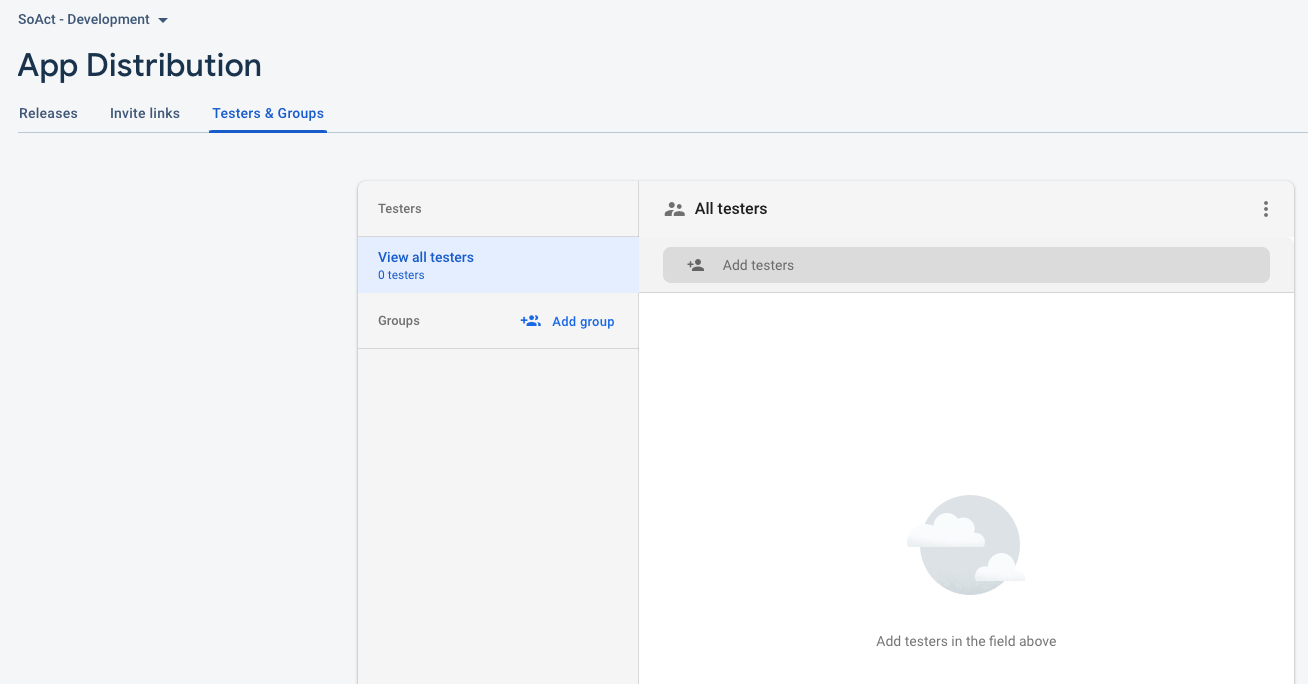
Step 3: Add testers email to the created group(s).

Step 4: Next create an invite link. By this invitation link we can invite anyone. Once they register through our invited link. That tester will register on our testers list.
We can select the groups & add domains. Both are an optional step.

Step 5: After that, upload the iOS or Android build which we have generated. Once we upload the build/app our tester will get an email.
Android requires a few steps for setup while uploading apk or app bundle.

- Connect firebase project to google play.
- Select the developer account.
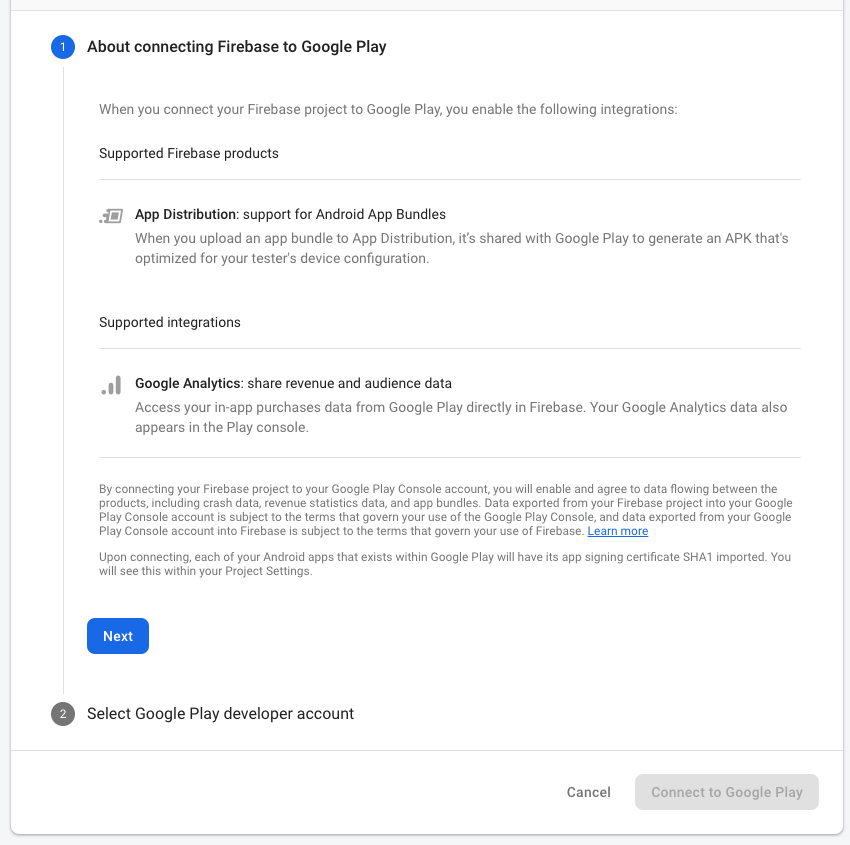
Step 6: While uploading an iOS or Android build we can select the testers or tester group and also we can add the release notes for the tester that what they’ve to test in the provided build.
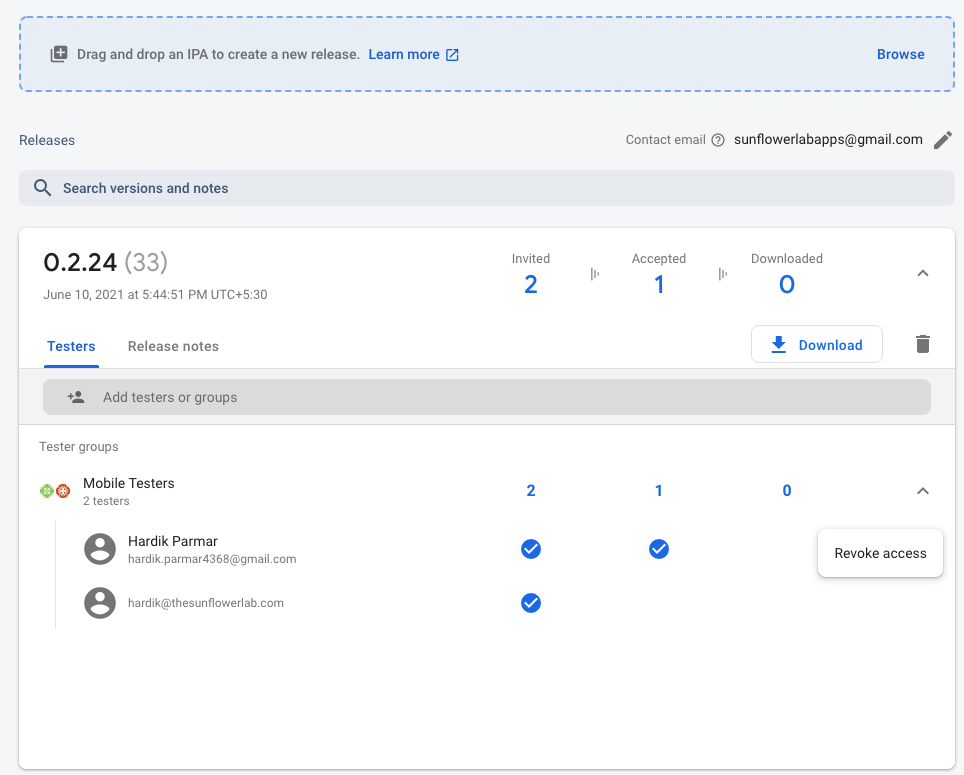
From the release build we can check which tester has accepted the invitation and downloaded the build. Also, we can revoke the access from the selected tester.
Testers Limit
- We can add a maximum of 500 testers to a firebase project.
- We can add a maximum of 200 testers to an app distribution group and per distribution.
We are also able to request to add more testers and can get more details from this section.
( Managing Testers ).
How can the tester download the build?
Android
Step 1: Tester will get an email. Once the tester taps on to get started it will ask to accept the invitation.

Step 2: It will then open firebase app distribution in browser where tester have to enable required permissions to test the build. And it also asks to get the Firebase App Tester app so that tester can easily use releases.

Step 3: Once we tap on the Get Started it will ask for google login and then asks for the few permissions to grant.


Step 4: Asks for the internal app sharing to be turned on.


Step 5: In the end, the download button will be visible and the tester can download the app/build.

That’s it for Android.
iOS
Step 1: Tester will get an email. Once the tester taps on to get started it will ask to accept the invitation.
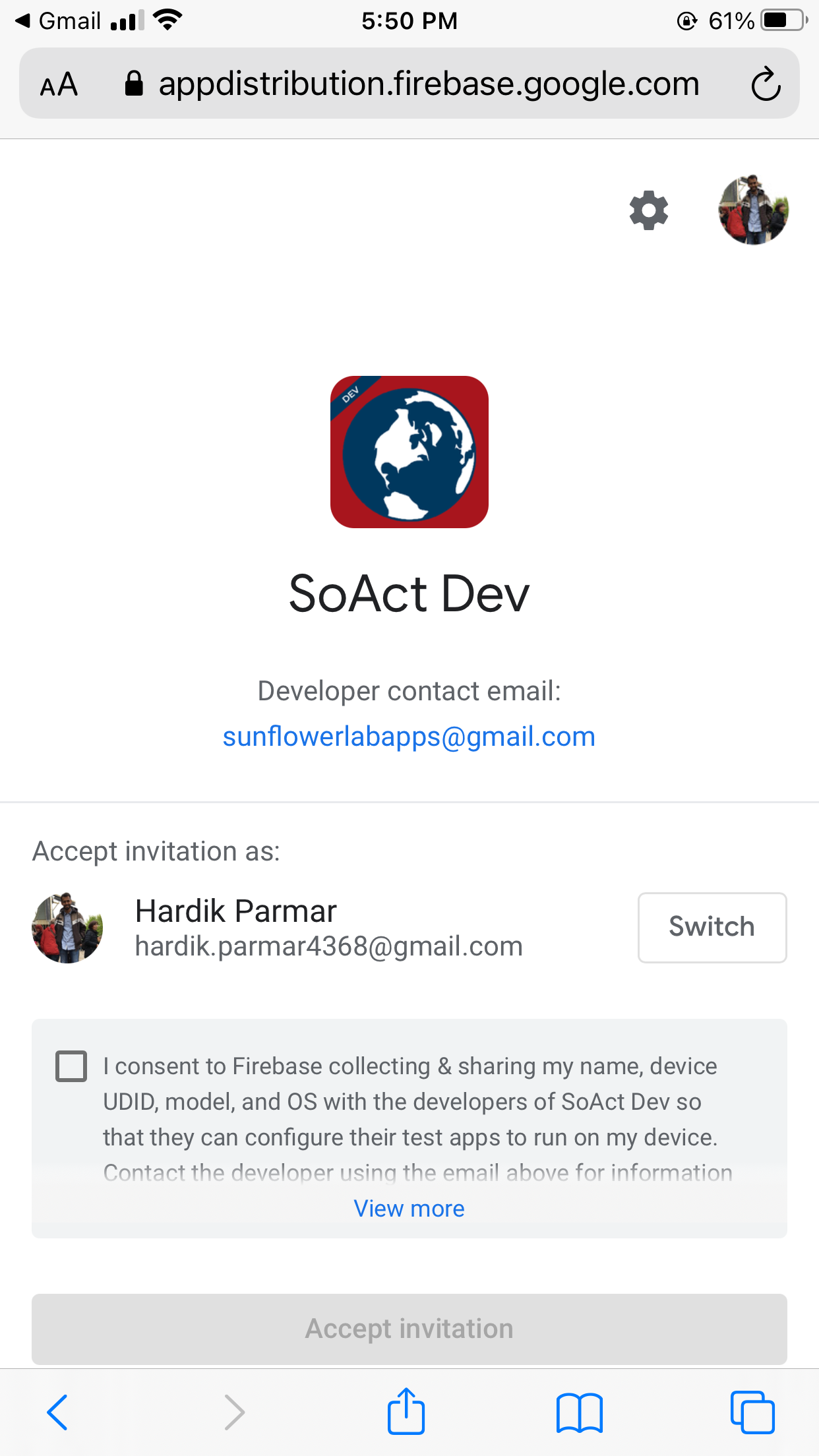
Step 2: For iOS, testers have to register their device.

Step 3: To register the device install firebase profile. The popup will appear to allow or not.


Step 4: Once the profile is downloaded it will appear in the settings. Install that firebase profile in your device. It will ask the device passcode to verify.


Step 5: Once the device gets registered. We’ll get an email with testers UDID. We have to add that device in the Apple Developer Portal. After adding a device, we have to update the provisioning profile and provide a new build/app.
If already registered that device, then the download button will be visible and testers can download the app/build.

That’s it for the iOS. Now we can install the apps and we can start testing the application.
So that’s it for this article & we hope that our readers have received some new information today to learn something new. See you later in upcoming articles. You can get more details from official documents here Firebase Official Documentation.
Get a FREE quote on your project today!
Your idea is 100% protected by our Non-Disclosure Agreement
Related Posts
Dynamics 365 Implementation with Power Platform: Why We Deliver Both as One Program

Dynamics 365 consulting works best when Power Platform ships in the same plan. Here are the five decisions we make together before build…
Your Dynamics 365 Implementation Partner Got You Live. Who Gets You to Value?
Dynamics 365 implementation and enhancement are different jobs, and one partner often cannot cover both. The usual fix in Dynamics 365…
Power Automate Desktop vs Playwright
Two Microsoft-adjacent automation tools, two very different answers to what happens when the page changes underneath them.
You might also like
Stay ahead in tech with Sunflower Lab’s curated blogs, sorted by technology type. From AI to Digital Products, explore cutting-edge developments in our insightful, categorized collection. Dive in and stay informed about the ever-evolving digital landscape with Sunflower Lab.